
Automations
Automations Overview
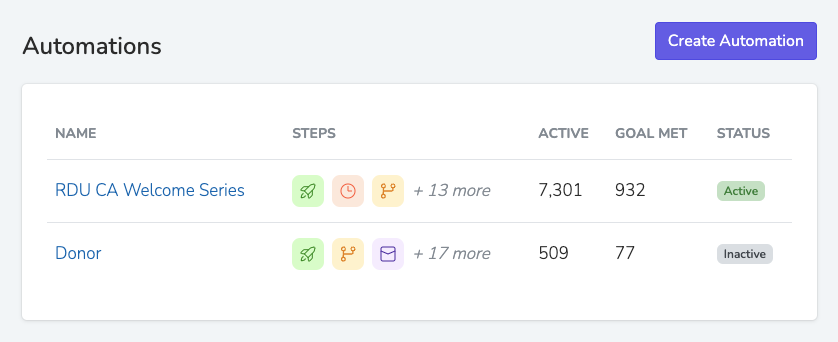
Solidarity Tech's Automations feature allows organizers to create dynamic, multi-step workflows that streamline supporter engagement. By automating repetitive processes, organizations can save time, nurture relationships effectively, and ensure consistent outreach across their entire community. Automations include actions, decisions, and delays that are triggered by supporter activities, ensuring every communication is timely, targeted, and impactful.
Key Benefits
-
Efficiency & Scalability: Automate repetitive tasks like welcome emails, follow-ups, and reminders, freeing up organizers to focus on strategic work.
-
Personalization at Scale: Automations adapt based on each supporter's behavior. With multilingual support, communications are sent in supporters' preferred languages.
-
Multi-Channel Engagement: Engage supporters through email, SMS, and follow-up tasks - delivering the right message at the right time.
-
Analytics & A/B Testing: Track performance at every step. See how many people engage, progress through the workflow, and achieve your goal. Test message variations to optimize results.
Triggers
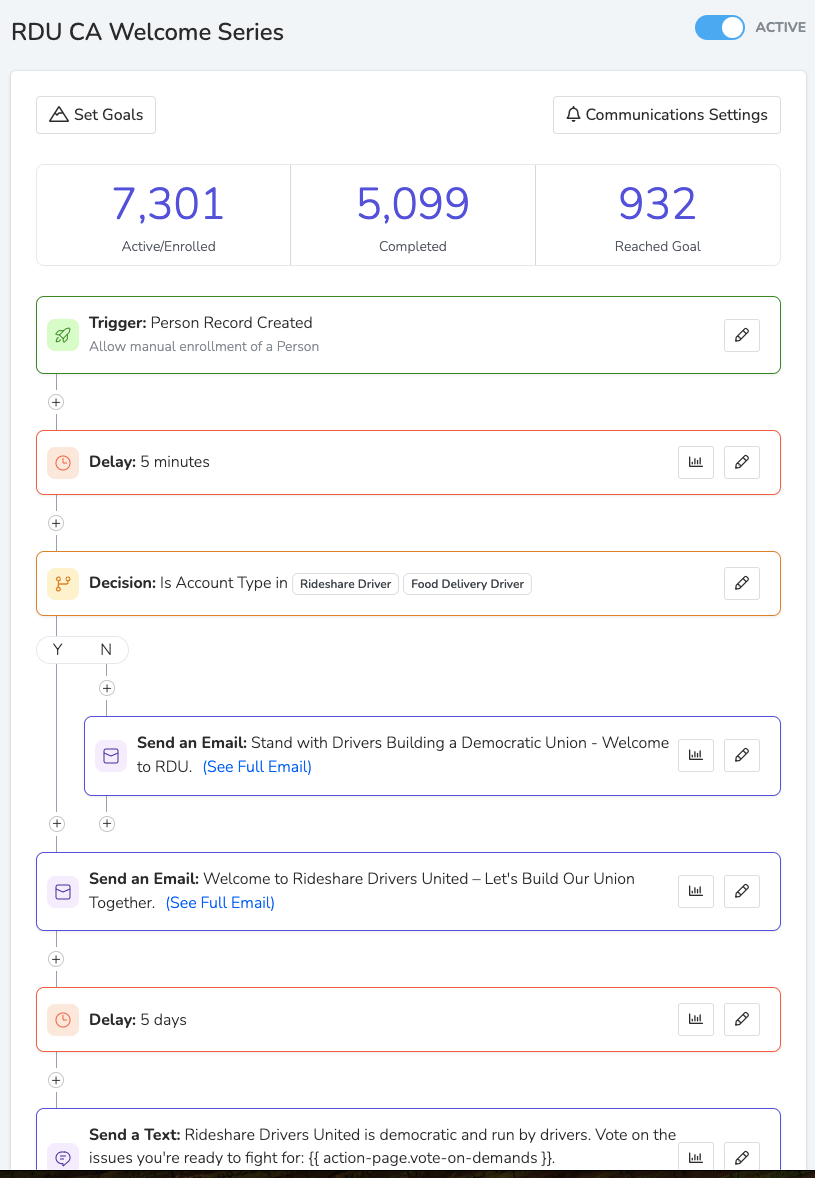
Triggers determine when someone enters an automation. You can combine multiple triggers in a single workflow.
Common Triggers
| Trigger | When It Fires |
|---|---|
| Form Submission | Someone submits any form or a specific form |
| RSVP'd to Event | Someone RSVPs to any event or a specific event. You can filter by RSVP status (Yes, No, or Maybe). |
| Attended Event | Someone is marked as attended |
| Person Record Created | A new person is added to your database |
| Sends Us a Text | Someone texts your number (can filter by content) |
| Answered Call | A call is answered (can require minimum duration) |
| Tag Added | A specific tag is added to someone's profile |
| Assessment Change | Someone's assessment level changes |
| Successful Donation | Someone makes a donation (any donation page or a specific one) |
| Takes Any Action | Any form, RSVP, call, text, or donation |
Additional triggers are available in the product, including email engagement triggers, link clicks, and more.
RSVP Status Filtering
For the RSVP'd to Event and RSVP'd to Session triggers, you can select which RSVP statuses (Yes, No, Maybe) should trigger enrollment. By default, only "Yes" RSVPs trigger the automation. This is useful if you want to run a follow up automation for people who RSVP "No" or "Maybe" to try to re-engage them, or if you want a single automation to handle all RSVP responses with different paths using a Decision Router.
Multiple Triggers
Automations support multiple triggers per workflow. Instead of building separate automations for each entry point, combine different triggers into one workflow.
Example: A volunteer recruitment automation could trigger from both "completed training form" AND "attended orientation event," ensuring no potential volunteer falls through the cracks.
Important: Automations Run Once Per Person
Automations only run once per person. After someone completes or exits an automation, they won't re-enter it even if they trigger it again.
This is by design - it prevents people from receiving the same welcome series twice or getting spammed by repetitive messages.
What if you need to re-run someone through an automation?
- Go to their person profile → Automations sidebar section
- Find the automation, click the ⋮ menu, and select "Delete Enrollment" to allow them to re-enter
What if someone doesn't meet any conditions?
- If they go down the "NO" branch of a conditional and there are no further actions on that branch, they exit the automation automatically.
Message Content Filtering
For automations triggered by incoming text messages, you can create conditional logic based on message content.
Filter Options:
- Contains Text: Check if the message includes specific keywords (supports regex)
- Exact Match: Match the complete message precisely
Example: Supporters text "Canvas Brooklyn Saturday" or "Phonebank Manhattan Tuesday." The automation detects the activity type and location, then automatically registers them for the appropriate event.
Actions
Actions are what happens after a trigger fires. See Automation Actions for the full list, including:
- Send Email
- Send Text
- Add Tasks
- Assign Agent
- RSVP to Events
- Update Tags
- Update Custom Properties
- Webhooks
Decision Router
The Decision Router lets you route supporters through different paths based on filter conditions. Unlike a simple yes/no conditional, the Decision Router can evaluate multiple conditions and execute different sets of actions for each matching segment.
How It Works
- Create conditions: Each condition has a name and a filter (e.g., "VIP Donors" where donation total > $500)
- Add actions to each condition: Each condition can have its own set of actions, delays, and even nested conditionals
- Choose execution mode:
- First match only: Executes actions for the first matching condition, then stops
- All matches: Executes actions for every condition the supporter matches
Use Cases
| Scenario | How to Use Decision Router |
|---|---|
| GOTV event routing | RSVP volunteers to canvasses or phonebanks based on their location or availability |
| Tiered donor engagement | Send different thank-you messages and follow-ups based on donation amount ranges |
| Chapter-based routing | Direct supporters to chapter-specific actions based on their location |
| Engagement level paths | Create different nurture sequences for highly engaged vs. less active supporters |
Example: GOTV Volunteer Routing
A Decision Router that RSVPs volunteers to the right Get Out The Vote events:
- Brooklyn volunteers (chapter = Brooklyn): RSVP to Saturday Brooklyn Canvass + send local details
- Manhattan volunteers (chapter = Manhattan): RSVP to Sunday Manhattan Phonebank + send office address
- Queens volunteers (chapter = Queens): RSVP to Saturday Queens Door Knock + send meeting point
With "First match only" mode, each volunteer is automatically registered for their local event and receives location-specific instructions.
Goals
Goals define when an automation should stop for a person. Once the goal is achieved, that person exits the workflow.
Available goals include:
- Sends us a text
- Submits a form
- Attends an event
- RSVPs to an event
- Has a call with us
- Makes a donation
- Schedules a call
See Goals & Communication Settings for more details.
Communication Time Windows
Each automation has configurable communication settings that control when messages (emails and texts) can be delivered. By default, automations can send at any time. You can restrict delivery to specific hours and days of the week, and optionally skip US holidays.
When a message action is triggered outside the allowed window, the message is queued and delivered at the start of the next valid window. Messages are never dropped or skipped.
Example: If your window is set to 9:00 AM - 8:00 PM on weekdays, and someone triggers a "send text" action at 10:00 PM on a Tuesday, the text will be delivered at 9:00 AM on Wednesday. The delivery time is calculated based on the recipient's timezone.
Chaining Automations
Automations fire in parallel with no guaranteed order. If you need one automation to run before another, use a tag as the handoff:
- At the end of Automation A, add an action to tag the person (e.g., "completed-welcome-series")
- Set Automation B's trigger to "Tag Added: completed-welcome-series"
This ensures Automation B only runs after Automation A completes for that person.
Troubleshooting Automations
If an automation isn't firing or people aren't progressing through the workflow, check these common causes:
People aren't entering the automation
- Already enrolled: Automations only run once per person. If someone already went through (or was removed from) this automation, they won't re-enter. Go to their profile → Automations section and delete their enrollment to allow re-entry.
- Wrong scope: The automation's scope must match or be a parent of the scope where the triggering action occurs. If your automation is scoped to a Chapter but the form submission happens at the Organization level, the trigger won't fire.
- Trigger mismatch: Double check that the trigger matches exactly. For "Form Submission" triggers, verify you selected the correct form (or "Any form"). For "RSVP'd to Event" triggers, verify the correct event and RSVP status (Yes/No/Maybe) are selected.
- Automation is paused or in draft: Only active automations process new enrollments. Check that the automation status is "Active" (not "Draft" or "Paused").
Messages aren't being sent
- Communication time window: If you've set a communication window (e.g., 9 AM to 8 PM weekdays), messages triggered outside that window are queued until the next valid window. They're not skipped, just delayed.
- No email/text permission: The person must have email or text permission enabled for that message type to be delivered. Check their profile for permission status.
- Missing contact info: If the action is "Send Email" but the person has no email address, or "Send Text" but no phone number, the action is skipped for that person.
Decision Router not routing correctly
- Check filter conditions: Open each condition and verify the filter matches what you expect. Test with a known person to see which condition they'd match.
- Execution mode: "First match only" stops after the first matching condition. If someone matches multiple conditions, only the first one runs. Use "All matches" if you want them to go down multiple paths.
- Timing: Filters evaluate the person's data at the moment they reach the Decision Router, not when they first entered the automation. If there's a delay before the router, the person's data may have changed.
Person stuck at a step
- Delay in progress: If there's a delay action (e.g., "Wait 3 days"), the person will appear stuck until the delay completes. Check the enrollment details to see which step they're on and when the delay expires.
- Goal already achieved: If the person achieved the automation's goal, they exit the workflow immediately. Check if a goal is configured that the person may have already met.
Building Effective Automations
- Start simple: Begin with one trigger and a few actions, then expand
- Use delays wisely: Space out messages to avoid overwhelming supporters
- Set clear goals: Define what success looks like so automations stop appropriately
- Test before launching: Use the preview feature to verify your workflow
- Monitor analytics: Track performance and iterate based on results
Updated 4 months ago