
Communication Permissions
Communication permissions control whether your organization can contact a Person via SMS, email, or phone. Solidarity Tech supports two levels of permissions: global (organization-wide) and chapter-specific.
How Permissions Work
Every Person has both global permissions and chapter-level permissions for each communication type:
| Permission Type | What It Controls |
|---|---|
| SMS Blast | Whether they receive broadcast text blasts |
| SMS P2P | Whether team members can send them direct texts (peer-to-peer) |
| Whether they receive email blasts | |
| Call | Whether team members can call them |
Permission Logic
A Person can only be contacted if both their global permission AND chapter permission are enabled. For example, if someone has:
- Global SMS Blast: ✅ ON
- LA Chapter SMS Blast: ❌ OFF
- NYC Chapter SMS Blast: ✅ ON
They will receive text blasts from NYC but not from LA.
Default Behavior
When a Person joins a new chapter (either as primary or secondary), their chapter-level permissions start out the same as their current global permissions.
A phone number or email field on a form gives SMS or email permission by default. To ask for consent instead, turn on the opt-in consent setting for that field.
An import gives SMS Blast and SMS P2P permission to a new person whose number can get texts, unless the person opted out. It also gives that person Call permission. It does not turn these permissions on for a person who already has them set.
Your organization is responsible for following the laws that apply to consent for texts and calls. Solidarity Tech does not give legal advice.
Managing Permissions
Viewing Permissions
Navigate to a Person's profile and click the Permissions tab to see their communication permissions.
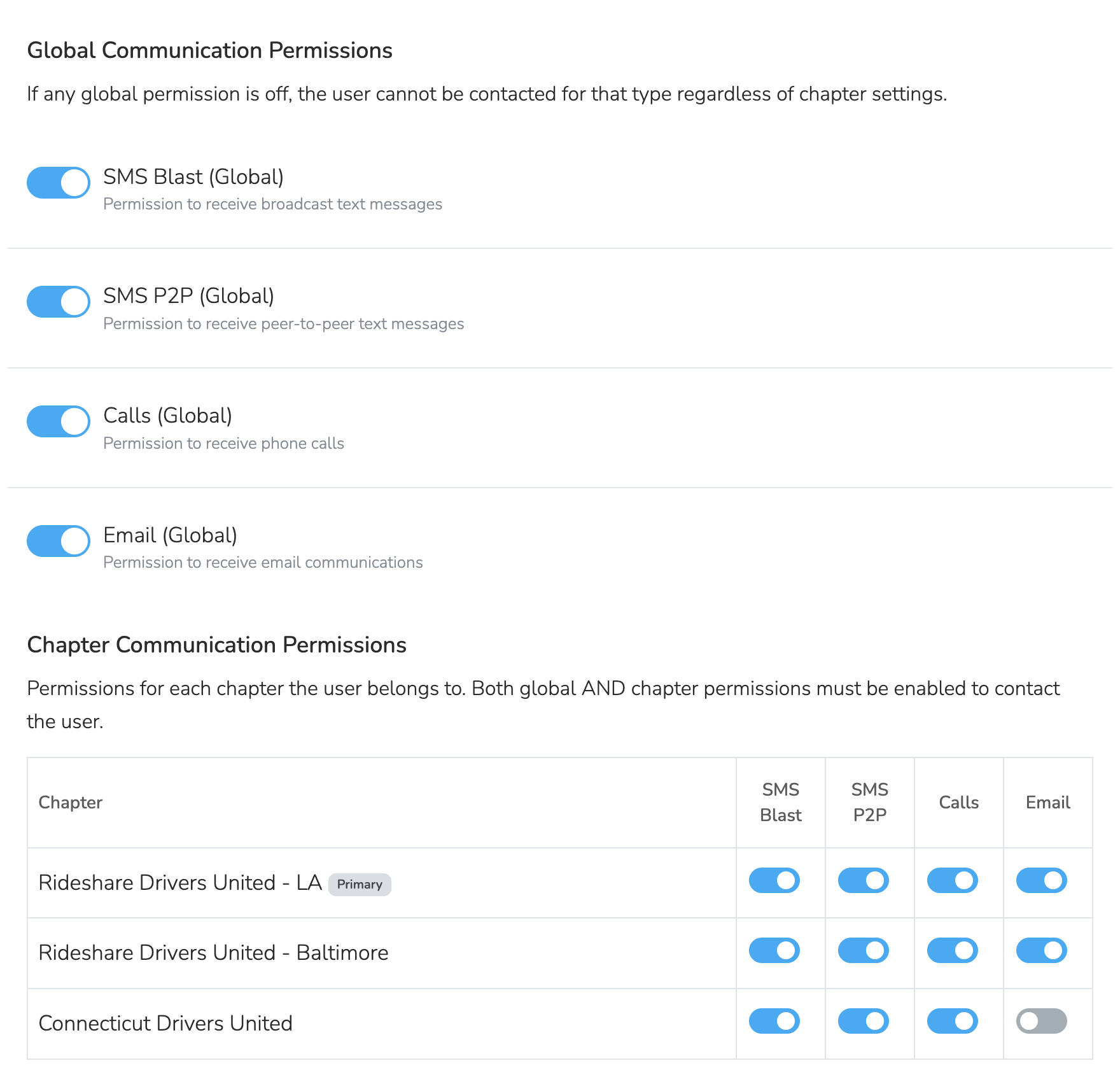
The Permissions tab shows:
- 'Global Communication Permissions' (at top, if you have access) holds the master switches.
- 'Chapter Communication Permissions' has toggles for each chapter the Person belongs to.
Editing Permissions
Team Members with appropriate permissions can toggle chapter-level permissions ON or OFF directly from the Permissions tab. Changes are tracked in the Person's activity timeline.
Note: Only team members with 'Update Advanced Person Details' can change global permissions in the dashboard. A 'No' answer to an SMS or email consent question on a form turns off 'SMS Blast (Global)' or 'Email (Global)'. An unsubscribe from all emails turns off 'Email (Global)' (if enabled in the Email Unsubscribe Page settings). If a global permission is OFF, chapter permissions are ignored.
Locked Permissions
In certain situations, one or more permission toggles are locked and cannot be changed from the dashboard:
| Reason | Which Permissions Are Locked |
|---|---|
| Person is on the Block List | All four global permissions (SMS Blast, SMS P2P, Call, Email) are locked OFF. Hovering over a locked toggle shows a tooltip explaining why. |
| Phone number is outside the organization's home region | SMS Blast, SMS P2P, and Call are locked. |
| Person replied STOP | STOP locks the chapter 'SMS Blast' and 'SMS P2P' toggles in every chapter until the person texts START or UNSTOP. The global toggles stay editable. |
Block-listed People keep every global permission off automatically. To remove someone from the Block List, go to Settings > Chapter Structure and click the root organization. In the 'Block List' section, click 'Delete' on the person's row.
SMS Opt-Out and Opt-In Keywords
Solidarity Tech treats a text as an opt-out when the whole text is one of the opt-out keywords below, in any case.
In addition to these keywords, Solidarity Tech automatically detects common opt-out phrases like "please stop texting me", "remove me from your list", and many others. See SMS Opt-Out Compliance for more recognized keywords and phrases, and for information on requiring opt-out language in outbound messages.
Opt-Out Keywords
Any of the following will unsubscribe a Person from SMS for that Chapter Phone Number: STOP, UNSUBSCRIBE, END, QUIT, CANCEL, STOPALL, OPTOUT, REVOKE.
Note: Both "OPTOUT" (one word) and "OPT OUT" (two words) are recognized.
When a Person texts any of these keywords to one of your Chapter Phone Numbers:
- Their chapter SMS Blast and SMS P2P permissions turn off for every chapter that uses that phone number. Global permissions and Call permission do not change.
- Solidarity Tech sends no reply of its own.
- An activity is logged on their profile
Opt-In Keywords
Any of the following will re-subscribe a Person: START, UNSTOP.
When a Person texts any of these keywords:
- Their chapter SMS Blast and SMS P2P permissions turn back on for every chapter that uses that phone number. Global permissions do not change.
- Solidarity Tech sends no reply of its own.
- An activity is logged on their profile
Multi-Chapter Behavior: If a Person is in multiple chapters that share the same phone number, opt-out and opt-in keywords affect all chapters using that number.
Email Unsubscribes
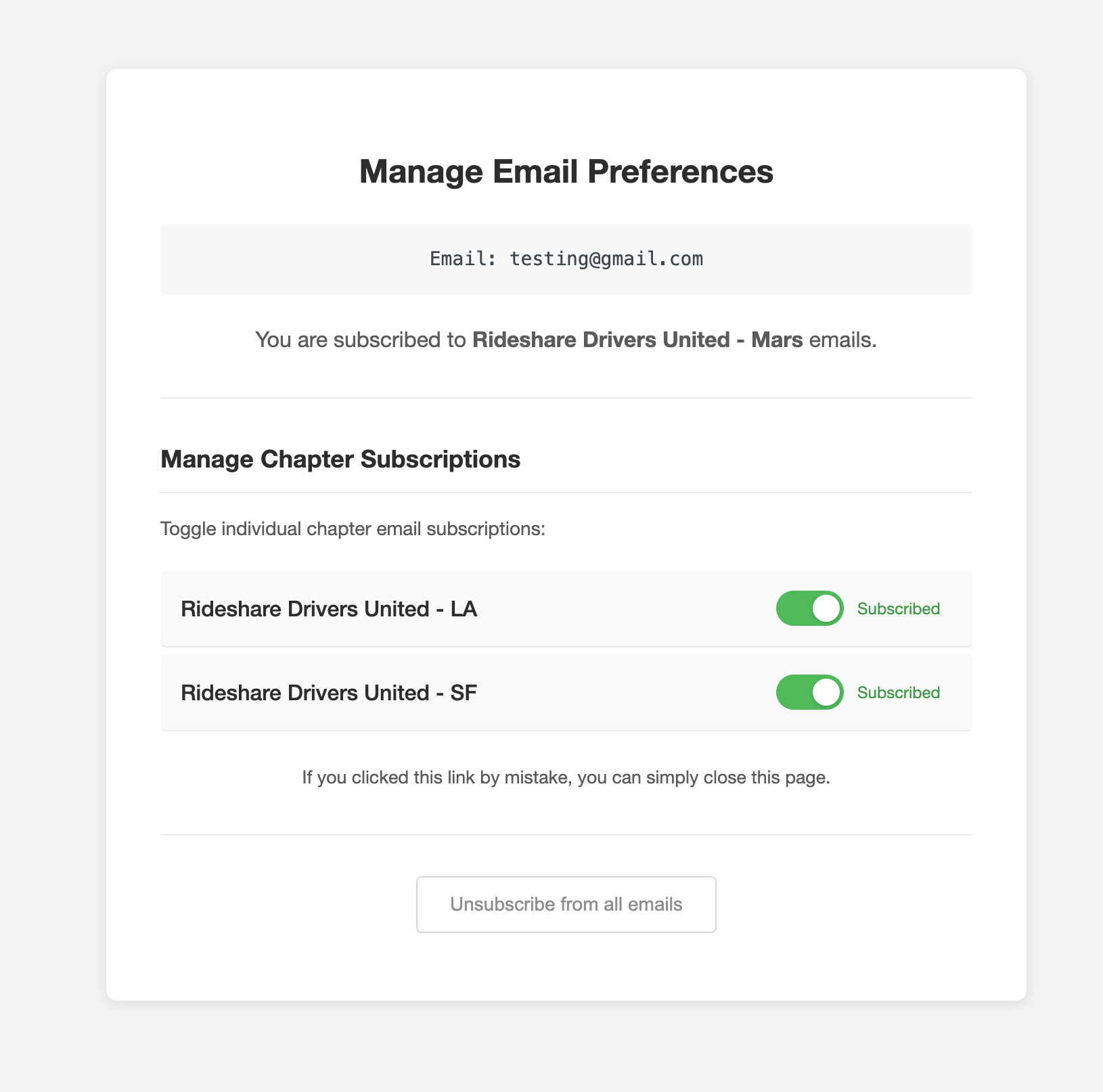
By default, the email wrapper footer shows an 'Unsubscribe' link. When a Person clicks it, they have options:
- The main button reads 'Unsubscribe from' and the chapter name, or the organization name for an organization blast. It revokes email permission for just that chapter or organization.
- Unsubscribe from all emails (if enabled) - Revokes global email permission (master switch)
The options shown on the unsubscribe page depend on your organization settings. See Email Unsubscribe Page to configure what choices People see.
Resubscribing
From the same unsubscribe page, People can choose to resubscribe:
- To a specific chapter
- To all emails (global)
All unsubscribe and resubscribe actions are tracked in the Person's activity timeline.
Importing Opt-Outs
When importing contacts from a CSV, you can preserve opt-out preferences from your previous system.
Chapter Opt-Out
Map a column to "Chapter Opt-Out" to revoke chapter-level permissions. After selecting this option, choose which permissions to revoke:
- ☐ SMS Blast
- ☐ SMS P2P
- ☐ Call
If the column value is true, yes, 1, or y, the selected permissions will be set to OFF for the import's target chapter.
Global Opt-Out
Map a column to "Global Opt-Out" to revoke global (organization-wide) permissions. This works the same way - select which permission types to revoke.
Tip: One import can map 'Chapter Opt-Out' or 'Global Opt-Out' to several columns, each with its own permission choices. For example, map an SMS opt-out column and a separate Email opt-out column in the same import.
Activity Tracking
The Person's activity timeline logs most permission changes, such as chapter and global email opt-outs and resubscribes.
Filtering by Permission
On the People page, you can filter by communication permissions. A rule that ends in '- Global', such as 'SMS Blast Permission - Global', checks only the global permission. A rule that ends in '- Chapter', such as 'Email Permission - Chapter', checks the global permission and the permission for the chapter that you pick.
Best Practices
Never manually re-enable permissions for someone who explicitly opted out.
Updated 28 days ago